8 Best Virtual Hat Try-On Tools 2026: Cowboy, Fedora, Beanie & More
Hats are one of the hardest accessories to buy without trying on first — product photos never show how a hat looks on your head. Virtual hat try-on tools solve this by letting you upload a photo and preview different hat styles before buying. Whether you’re eyeing a felt cowboy hat for a Nashville trip, a chunky beanie for winter, or a fitted baseball cap for everyday wear, a good hats try-on tool saves you from expensive returns.
I tested every best virtual hat try on tool I could find, running the same photos through each with baseball caps, fedoras, beanies, cowboy hats, bucket hats, and more. I paid special attention to cowboy hats because they’re the trickiest style to render — wide brims, shadow casting, and proportions break most tools. Here’s how they stack up in 2026.
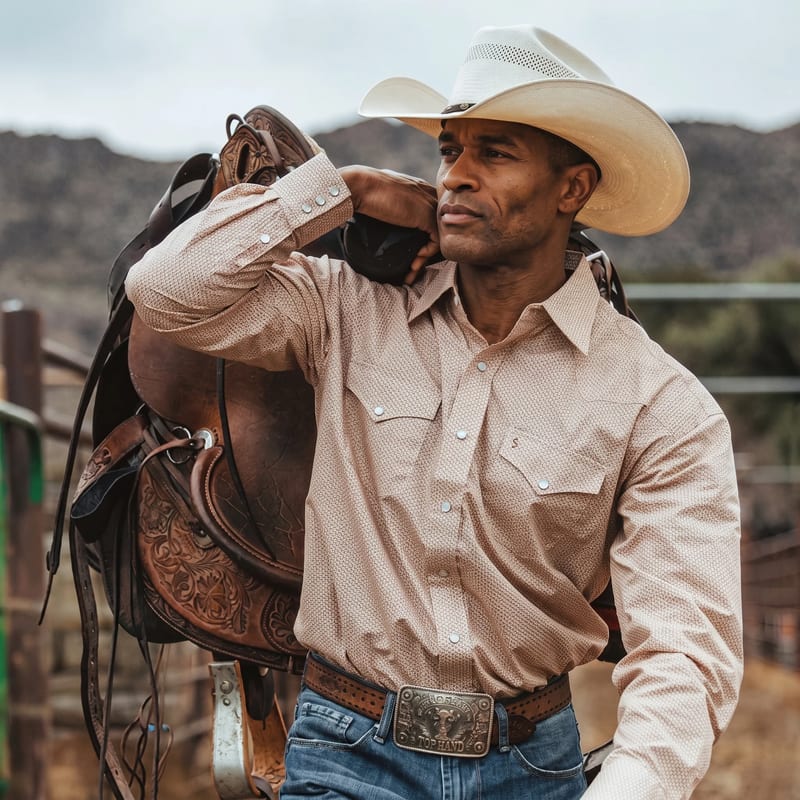
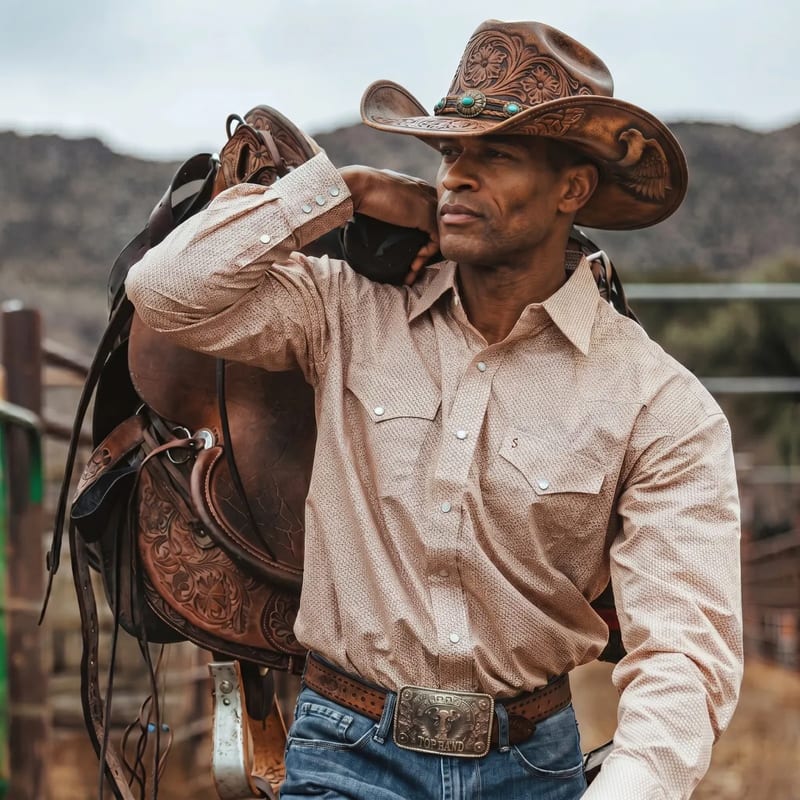
Top 8 Virtual Hat Try-On Tools Compared
1. VizStudio — Best Virtual Hat Try-On Overall
VizStudio’s virtual hat try-on tool produces the most realistic results of any tool I tested. The AI places hats with accurate scaling, proper angle matching, and shadow rendering that matches your photo’s lighting direction. Cowboy hats, beanies, baseball caps, and fedoras all looked convincingly placed — even wide-brim Western styles that usually confuse AI.
The workflow is entirely browser-based through VizStudio’s main platform — no app download, no account creation for basic use, and results in under thirty seconds. You can also pair hats with different outfits using the AI clothes changer for complete look previews, which I found genuinely useful when I was trying to figure out whether a cowboy hat worked with a denim jacket.
There’s also a dedicated virtual cowboy hat try on page specifically tuned for Western styles, which is rare — most tools treat every hat the same.
Best for: Anyone who wants the most realistic photo-based preview across every hat category.
| Feature | Details |
|---|---|
| Hat styles supported | Cowboy, fedora, beanie, baseball cap, bucket hat, wide-brim, and more |
| Processing time | ~15–25 seconds |
| Platform | Browser-based, no download |
| Photo requirements | Clear face photo, any angle |
| Additional styling | Integrates with clothes and accessory try-on tools |
2. Wanna Fashion — Strong AR-Based Alternative
Wanna’s hat try-on builds on their impressive sneaker AR technology. Unlike VizStudio’s photo-based approach, Wanna works in real-time through your phone camera — turn your head and see the hat from different angles. For structured styles like baseball caps and fitted beanies, the tracking is genuinely impressive.
The tradeoff: you need a newer phone with AR capabilities, and the catalog is limited to partner brands. Cowboy hat coverage is thin, and wide brims are where their real-time tracking struggles most — shadows and brim-edge occlusion don’t always render cleanly.
Best for: Previewing a specific branded hat in real-time before a checkout.
3. Zeekit (Walmart) Virtual Try-On
Zeekit (acquired by Walmart) powers virtual try-on across Walmart’s clothing categories, including hats. The main advantage is direct e-commerce integration — see a hat, buy it immediately. Rendering is acceptable for structured hats like baseball caps but weaker for soft styles like beanies, and almost nonexistent for Western silhouettes.
The limitation is catalog size: Walmart’s selection skews casual, so Western hats, dress hats, or niche styles aren’t available. You also can’t upload arbitrary product images from other retailers — you’re stuck with the in-store catalog.
Best for: Shoppers who only buy from Walmart and want one-click try-on to purchase.
4. Style.me
Style.me offers a full-body virtual fitting room where you create a 3D avatar and mix clothing and accessories, hats included. For hat-specific use it feels over-engineered — avatar setup takes 5-10 minutes versus 30 seconds on VizStudio. But for coordinating complete outfits (hat + jacket + pants), the holistic approach makes sense.
Hat rendering is decent but avatar-based rather than photorealistic, which means it never quite looks like you in the hat. Cowboy hat proportions skew slightly small on the avatar heads I tested.
Best for: Planning full outfits around a hat rather than previewing the hat itself.
5. Snapchat Hat Lenses
Snapchat’s AR hat lenses render in real-time using your front camera. Quality varies wildly — from cartoon overlays to sophisticated AR with proper depth and lighting. Zero cost if you already have Snapchat, but finding specific styles means digging through community lenses with inconsistent quality.
There are a handful of decent cowboy hat lenses, but they tend to float above the head rather than sit on it, and the brim rarely casts a believable shadow. Fun for casual previews; not reliable enough for purchase decisions.
Best for: Casual, share-worthy previews when you’re not actually buying anything.
6. Banuba AR
Banuba provides AR technology to other companies and offers a demo platform showcasing hat rendering. Quality is solid — good tracking, decent shadows, common hat categories covered. Their demo includes baseball caps, beanies, and a limited cowboy hat option, and the head-tracking is smooth enough to feel real-time.
However, it’s a B2B demo, not a consumer product. You can test the technology but can’t preview specific hats you’re considering buying, and there’s no way to upload your own hat image.
Best for: Developers evaluating AR hat tech for their own app.
7. PicMonkey Hat Overlays
PicMonkey offers manual hat graphic overlays — no AI placement, no head detection, no lighting adjustment. Essentially a sticker tool. The hat library is large and includes a fair selection of cowboy hats, but you’ll spend minutes manually positioning, resizing, and rotating each one.
There’s no shadow or lighting match, so the final image always looks composited rather than realistic. For AI-powered automatic placement, use VizStudio’s hat try-on tool instead.
Best for: Graphic design projects where you want a hat sticker, not a realistic preview.
8. Canva Hat Templates
Another manual-overlay option like PicMonkey — drag, drop, and resize hat graphics with no AI behind the placement. Canva works for styled compositions (invitations, social posts, party flyers) where a hat graphic adds a thematic element, but not for realistic hat previews.
The cowboy hat graphics in Canva’s library are genuinely well-illustrated but they’re illustrations, not try-on renderings. Your face stays untouched while a flat cartoon hat sits over it.
Best for: Social media graphics and themed invitations, not purchase decisions.
Virtual Cowboy Hat Try-On — A Closer Look
Cowboy hats deserve their own section because they’re by far the most requested — and most frequently botched — category in virtual try-on. Almost every tool I tested handled baseball caps fine but fell apart on Western silhouettes. If you’re specifically looking to try on cowboy hats virtually, the tool you pick really matters.
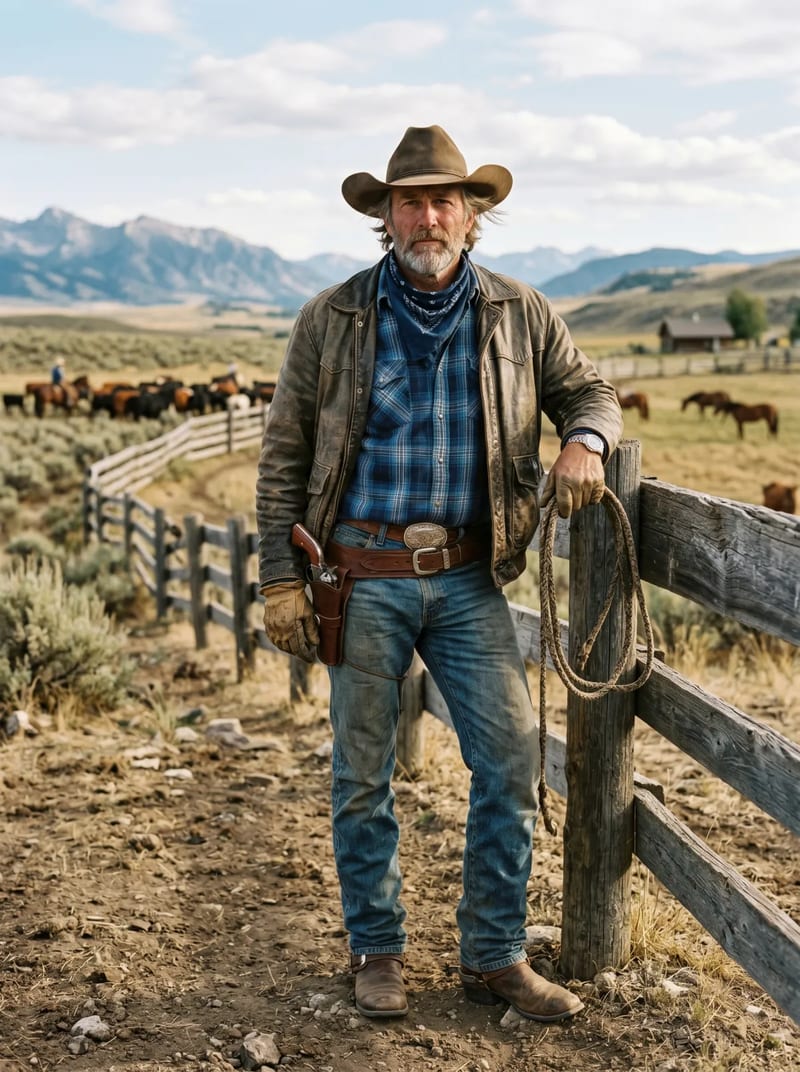
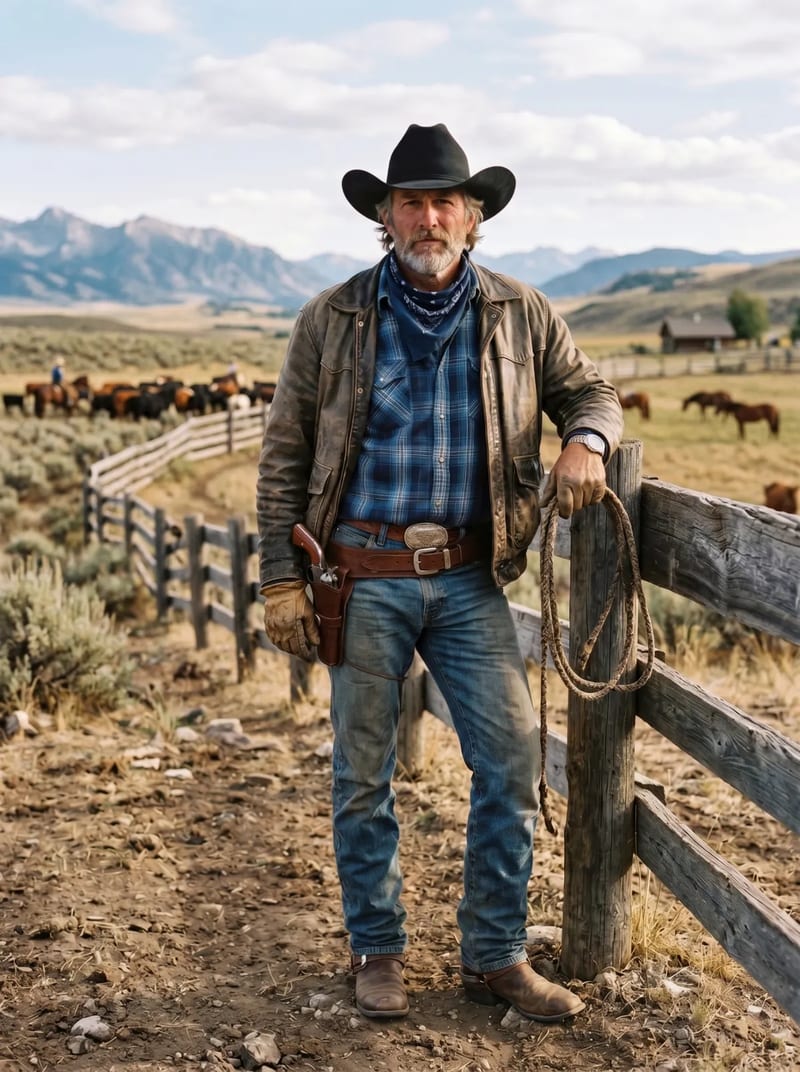
Why Cowboy Hats Are the Hardest to Try On Virtually
Three things make cowboy hat try on a hard technical problem. First, the brim is wide — often 4 inches or more — which means the AI has to render a large surface that casts a big, direction-sensitive shadow across the face. Get the shadow wrong and the result looks pasted on.
Second, the proportions vary dramatically. A Western cowboy hat sits much taller on the crown than a fedora, so the model needs to extend above the head in a way that preserves hair and face geometry. Cheap tools just float a flat hat graphic and hope.
Third, cowboy hats have a curve on the brim — pinched sides, a dipped front — and the curve has to match the viewing angle of the photo. Most AR tools render a symmetric brim regardless of head tilt, which looks wrong immediately.
How to Try On Cowboy Hats Virtually in 3 Steps
The fastest way to try on cowboy hats virtually is through a dedicated AI tool rather than a generic one. The workflow I use:
- Take a clean front-facing or three-quarter photo with soft, even light — no direct overhead sun.
- Upload it to the virtual cowboy hat try on page and pick a style (cattleman, gus, open crown, etc.).
- Wait around twenty seconds for the AI to render the hat with the correct shadow and proportion, then compare side-by-side with the original.
No download, no AR calibration, no manual positioning. That’s the whole point of a good cowboy hat try-on tool.
Western vs Cattleman vs Gus — Cowboy Hat Styles Worth Previewing
Not every cowboy hat looks right on every face. The cattleman is the classic Western shape — tall crown with a center crease and pinched sides. It’s the default “cowboy” silhouette and suits most face shapes. The gus (popularized by Robert Duvall in Lonesome Dove) has a sloped crown that’s shorter in front and taller in back — more dramatic and best for longer faces. The open crown has no crease at all, which reads as softer and more modern.
The reason virtual cowboy hat try on matters here is that the difference between these three styles is subtle in product photos but obvious on your actual head. Previewing all three in ten minutes beats returning two of them after they arrive.
Hat Styles Breakdown
Beyond cowboy hats, here’s how the rest of the major categories render in virtual hats try-on tools — and what to watch for in each.
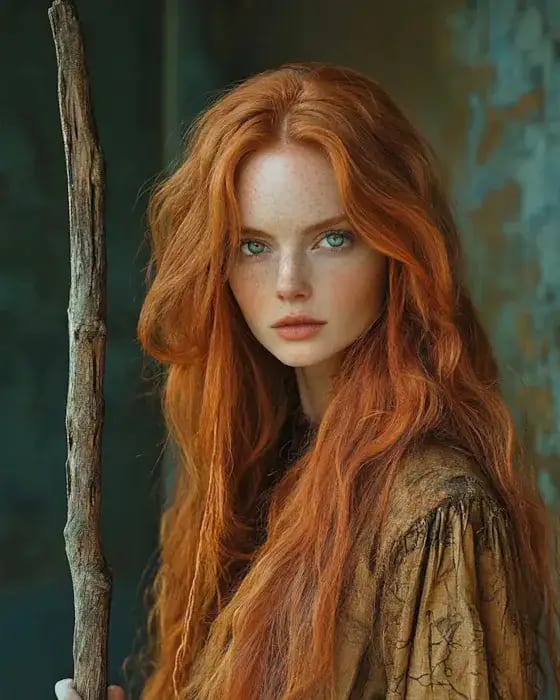
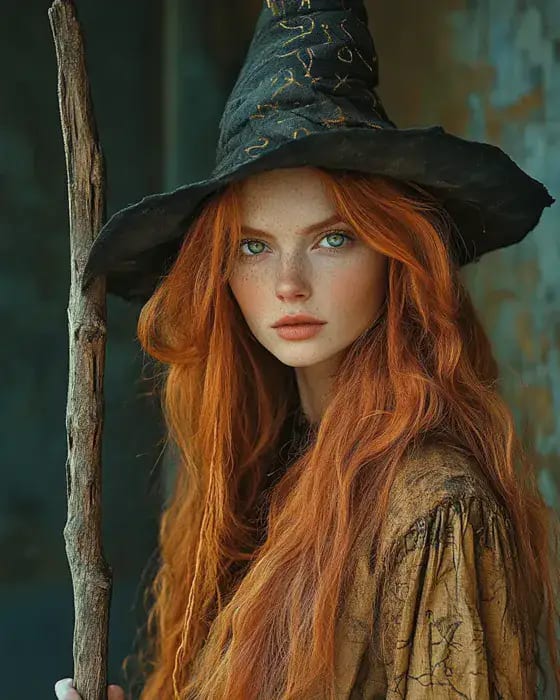
Baseball Caps
Baseball caps are the easiest category for AI to render — the structured crown and short curved brim are predictable geometry. Almost every tool gets the basic placement right. The differences show up in details: logo sharpness, brim shadow, and whether the cap sits naturally on your hairline or floats. Fitted caps render cleaner than snapbacks because there’s no adjustable back strap to guess at.
Fedoras
Fedoras have a medium brim and a pinched crown, which makes them a good middle-ground test. Rendering quality here usually predicts how a tool will handle everything else. The sweet spot is a narrow-brim fedora with a grosgrain band — clean enough to tell whether the AI is matching your hairline correctly and ambitious enough to show whether shadow math works.
Beanies
Beanies are soft and deform to head shape, which is actually hard for AI because there’s no rigid reference. The best tools render a beanie that hugs your skull with believable fabric folds; weaker ones paste a rigid dome on top that ignores your hair entirely. If you have long hair, look for tools that let some hair escape naturally from the sides rather than disappearing under a hard edge.
Bucket Hats
Bucket hats sit between cowboy hats and fedoras in difficulty — the brim is soft and downturned, which means shadows have to follow the curve around your face. AI tools often render the brim too stiff, making the hat look like plastic rather than cotton canvas. Pay attention to brim flex in the preview.
Wide-Brim Sun Hats
Wide-brim hats are the second-hardest category after cowboy hats. The brim is even wider on some floppy sun hat styles (6+ inches), which means a huge soft shadow across the shoulders and upper chest. Only the best tools get this shadow right. If it looks like the hat isn’t casting one at all, the AI hasn’t done the lighting math.
Fascinators & Dress Hats
Fascinators and formal dress hats (think Kentucky Derby) are the wild card — they attach at angles, include feathers and mesh, and often sit off-center. Very few virtual try-on tools support these. If you need to preview a fascinator, you’re usually stuck with manual overlay tools like Canva or PicMonkey rather than AI-based placement.
Virtual Hat Try-On for Men
Hats look different on different face shapes, and the men’s styles I tested mapped to face shapes in fairly predictable ways. For virtual hat try on men specifically, the main decision is matching crown height and brim width to your face.
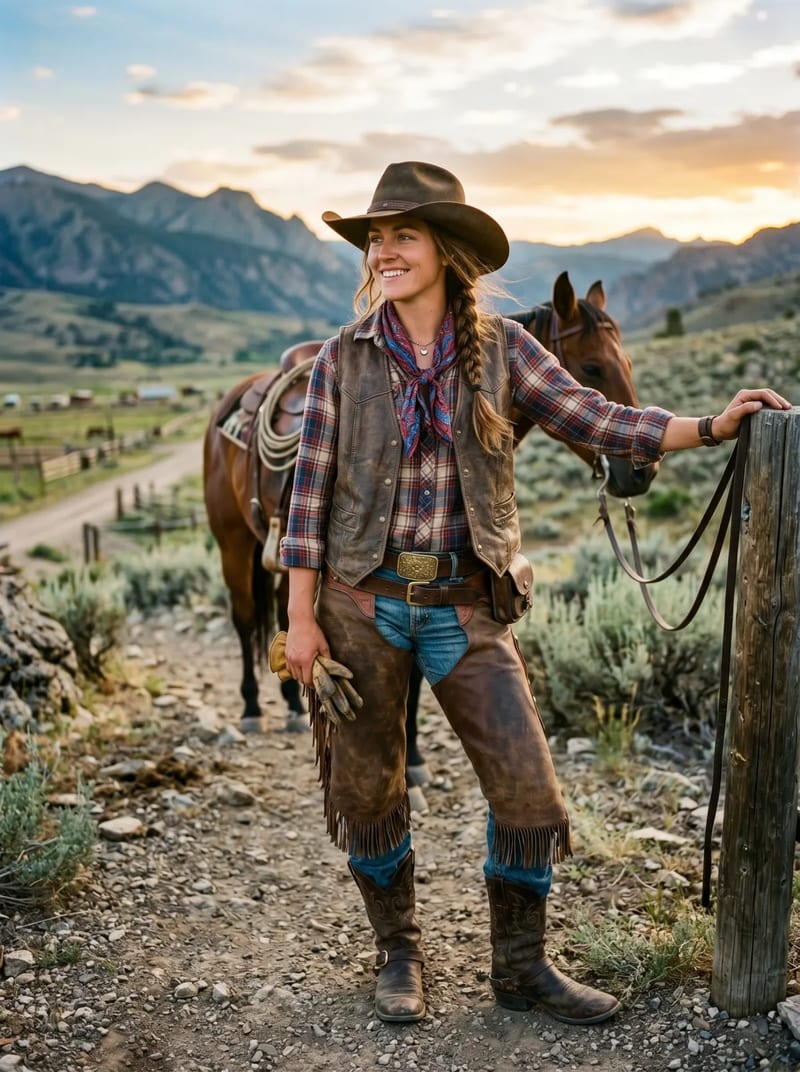
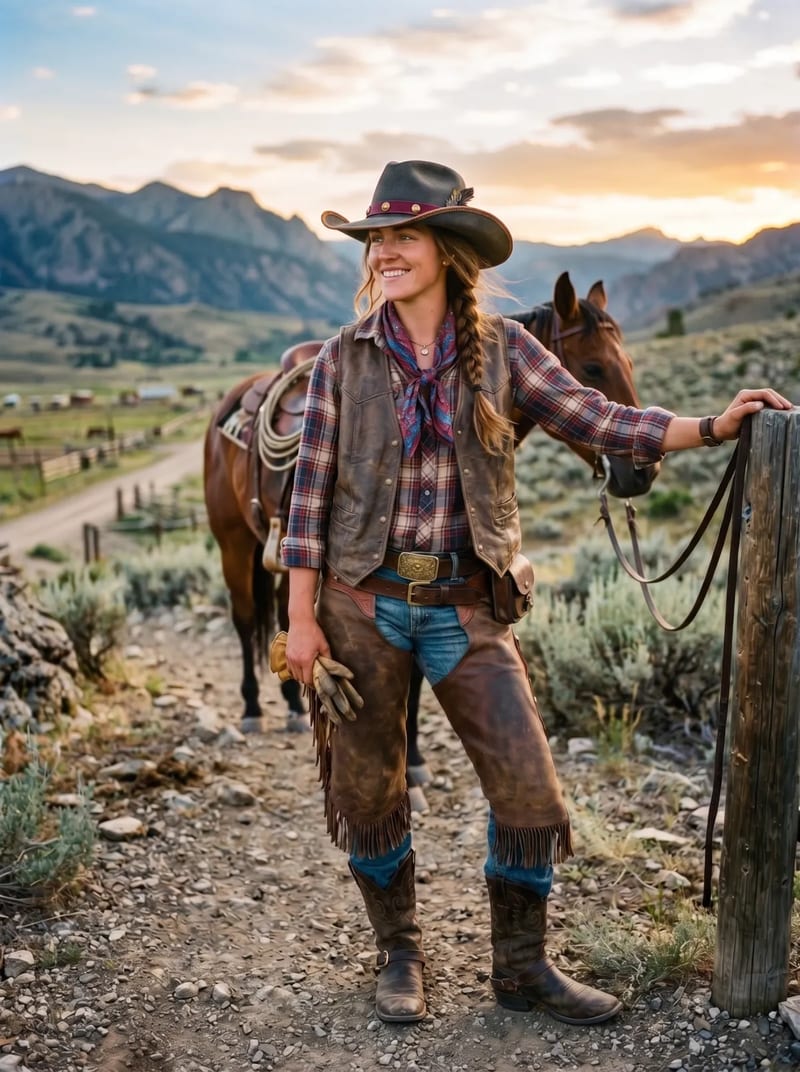
Round faces look best in hats that add height — structured fedoras, tall-crown cowboy hats, or snapbacks with some stiffness. Avoid flat caps and beanies worn low, which shorten the face further.
Square faces benefit from softer shapes — floppy wide-brims, open-crown cowboy hats, and slouchy beanies soften a strong jaw. Stiff trilbies can look blocky here.
Oval faces wear almost anything — from a classic flat cap to a dressy trilby to a full Western cattleman. If you want to experiment broadly, this is the face shape with the most latitude.
Popular men’s styles worth previewing: flat cap, trilby, snapback, structured fedora, cattleman cowboy hat, and knit beanie. Run each through a hat try-on tool before committing — ten minutes of preview beats a return shipment.
Web vs App — Do You Need a Hat Try-On App?
A common question I get: is there a good cowboy hat try on app or hat try on app? The short answer is probably not the one you want.
Native hat try-on apps exist — mostly from AR vendors like Wanna and from individual brands — but they’re almost always worse than web-based tools for actual purchase decisions. Apps excel at one thing: real-time AR where you turn your head and see the hat move. That’s fun, but the preview quality is usually worse than a still-image AI render because the app has to run fast enough for video.
Web-based tools like VizStudio’s virtual hat try on skip the app-store install, work on any device with a browser, and produce photorealistic results because they can spend 20 seconds on each render instead of 20 milliseconds. You also get to save, share, and compare results easily — harder in a purely AR app.
The only case where a dedicated cowboy hat try on app makes sense is if you want to walk around the store holding your phone up like a magic mirror. For everyone else — which is most people buying hats online — a web tool is faster and sharper.
Tips for Better Results Across All Tools
Your input photo matters enormously. These are the five things I test-optimized across every tool I reviewed — each one measurably improves output quality.
- Lighting: Use soft, even indoor light. Harsh direct sunlight creates hard shadows the AI can’t separate from the hat’s shadow.
- Facial angle: Face the camera straight-on or at a mild three-quarter turn. Extreme profile shots confuse head detection, especially for wide-brim styles.
- Remove glasses: Glasses reflect light and cross into the hat-shadow zone, which makes the AI render inconsistent shadows on one side of your face.
- Hair down: A ponytail changes the apparent head shape. Wear your hair the way you’d actually wear it with the hat for an accurate preview.
- Resolution: Upload at least 1000px on the shortest side. Low-res inputs force the AI to guess detail, and that’s where artifacts come from.
For a deeper walkthrough, see how to try on hats virtually — it goes step-by-step with example photos.
What to Look for in a Virtual Hat Try-On Tool
The best tools do three things well. First, automatic head detection and hat placement — you shouldn’t have to manually position anything. Second, lighting matching, so the hat’s shadows and highlights are consistent with the rest of your photo. Third, proper scaling, so the hat looks proportional to your head rather than comically large or tiny.
If you’re shopping for hats online, a tool that integrates with e-commerce (like Zeekit) saves steps. If you want the most realistic preview regardless of where you’ll buy, a dedicated photo-based tool like VizStudio gives you the highest quality. And if you’re also exploring other accessories, VizStudio’s ecosystem includes tools for virtual shoe try-on and virtual ring try-on, so you can preview an entire accessory set in one session.
Frequently Asked Questions
Can virtual hat try-on tools show how a hat fits, not just how it looks?
Current tools show visual appearance, not physical fit. They can’t tell you if a hat will feel tight or slide down. Use virtual try-on for style decisions (does this suit my face?) and size charts for fit decisions.
Do virtual hat try-on tools work with all hair types and styles?
VizStudio handled various hairstyles well — long, short, curly, and ponytails. Some other tools struggled with voluminous curly hair. Test with your actual hairstyle rather than slicking it back for the most accurate preview.
Which hat styles are hardest for AI to render accurately?
Wide-brimmed hats (cowboy hats, sun hats, floppy beach hats) are the hardest due to complex shadow casting and proportional width. Structured hats like baseball caps and fedoras are easier. For wide-brim styles, use a tool with strong shadow rendering like VizStudio’s cowboy hat try-on tool.
Can I try on cowboy hats virtually for free?
Yes. VizStudio’s virtual cowboy hat try on has free previews — no credit card, no app install. You upload a photo, pick a cowboy hat style, and get a rendered result. Paid tiers exist for higher volume or commercial use, but casual users can preview cowboy hats for free.
Is there a cowboy hat try-on app?
A few AR-based cowboy hat try on app options exist on the app stores, but quality is mixed and most lock you to a specific retailer’s catalog. For a broader, higher-quality preview without installing anything, a web tool is the better default. Apps make sense only if you specifically want real-time AR with head motion.
Which virtual hat try-on is best for men?
For virtual hat try on men, VizStudio is the most consistent across face shapes and hat categories. It handles the crown-height and brim-width variations well — structured fedoras on round faces, open-crown cowboy hats on square faces, and flat caps on oval faces all render cleanly.
Can I try on multiple hat styles at once?
Most tools process one hat at a time, but you can queue several previews and compare them side-by-side in a browser window. I usually open three or four in separate tabs and flip between them. This is much faster than ordering three hats and returning two.
How accurate are virtual hat try-on tools?
The best AI tools are accurate enough to make confident style decisions — “does this hat suit my face?” is a question they answer well. They’re less useful for exact color matching (screen calibration varies) or fit (which depends on head circumference). Treat the preview as a style check, and use the retailer’s size chart for fit.
Wrapping Up
VizStudio earned the top spot by combining the most realistic rendering with the simplest workflow — upload a photo, pick a hat, see the result. No app, no avatar, no manual positioning. For anyone who buys hats online, it’s the most practical tool available right now. Preview first, buy second.
And if you’ve been circling a specific Western silhouette — cattleman, gus, or open crown — the dedicated virtual cowboy hat try on page is tuned for exactly that use case and handles wide brims better than any other tool I tested.
Suite de génération vidéo & image IA
Effets vidéo, essayage virtuel, changeur de tenues, studio photo, suppresseur de fond, et plus — propulsé par les derniers modèles IA.
Vidéo de bisou IA
Transforme des photos de deux personnes en vidéos IA animées romantiques avec des expressions faciales et des mouvements réalistes.
Vidéo de bises IA
Uploade un selfie et l'IA génère une vidéo fun où des personnes attrayantes se ruent des deux côtés pour t'embrasser.
Vidéo de câlin IA
Transforme des photos en vidéos de câlin IA touchantes avec une animation d'étreinte naturelle et des expressions émotionnelles.
Générateur de bikini IA
Génère une vidéo montrant une transition vestimentaire fluide et naturelle vers des tenues de bikini ou maillot de bain tendance.
Générateur de muscles IA
Crée des vidéos de transformation musculaire spectaculaires à partir de tes photos avec une animation corporelle réaliste.
Vidéo de danse IA
Anime n'importe qui en train de danser avec une chorégraphie énergique, des mouvements corporels fluides et un rythme entraînant.
Vidéo IA style Ghibli
Transforme des photos en animations magiques style Studio Ghibli avec des textures aquarelles douces et des mouvements feeriques.
Générateur de GIF IA
Crée des GIF animés en boucle fluide à partir d'images statiques — parfait pour les réseaux sociaux et la messagerie.
Transformation Hanfu IA
Transforme des photos en superbes vidéos de vêtements Hanfu traditionnels chinois avec des robes en soie élégantes et des broderies complexes.
Vidéo changeur de vêtements IA
Crée des vidéos de transformation de tenues fluides — l'IA enchaîne 5 à 6 tenues tendance tout en préservant ton identité.