How to Try On Hats Virtually: Complete Guide (No App Needed)
If you’ve ever spent too long in a store trying on hats that looked great on the shelf but terrible on your head, you already know the problem. Every hat fits differently, product photos never tell the full story, and buying online means risking the hassle of returns when a hat doesn’t suit your face shape.
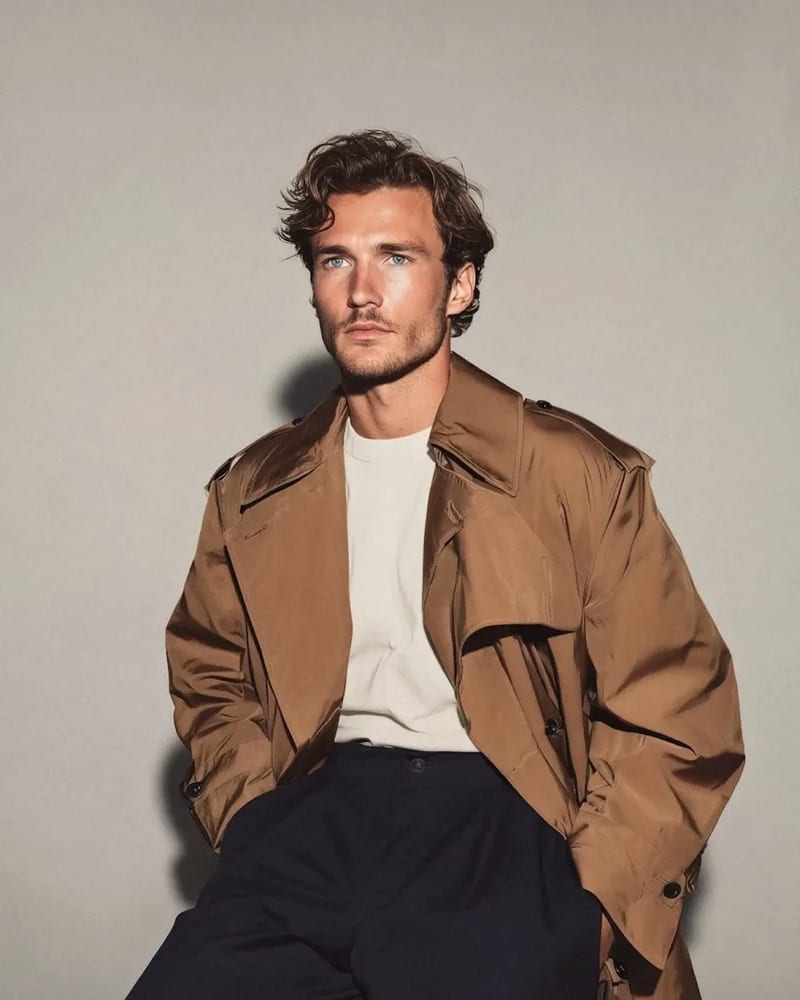
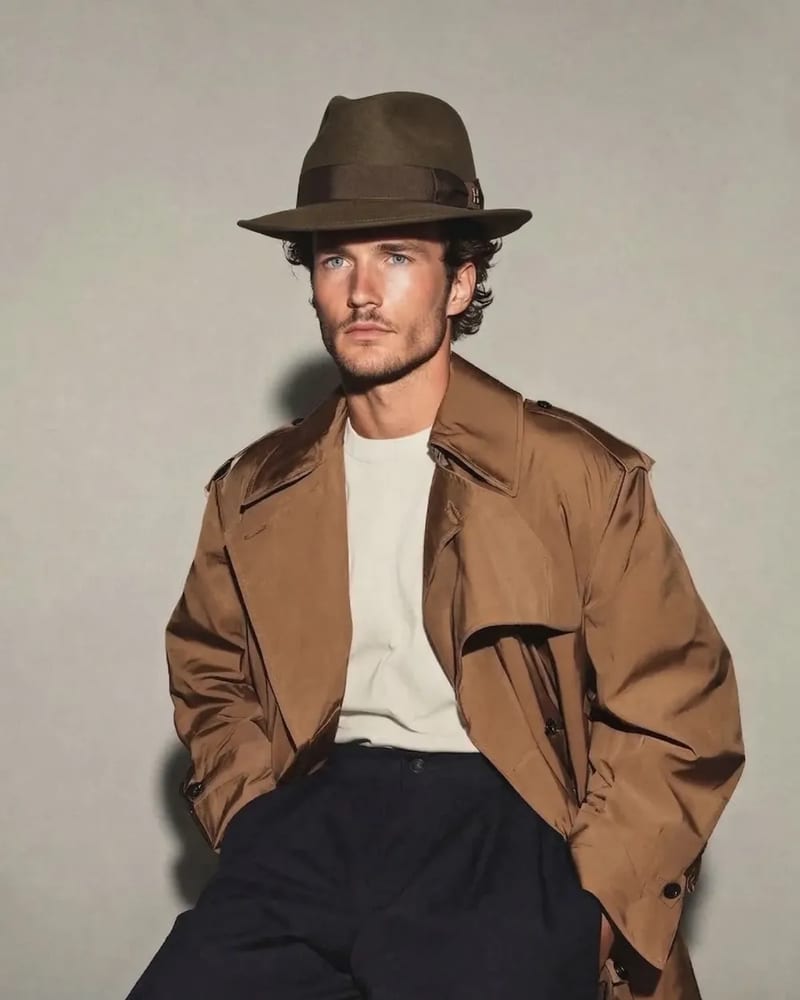
Now you can try on hats virtually from home using AI-powered tools that overlay realistic hat renderings onto your actual photo. No store visits, no return hassles — just a photo and a browser.
This guide walks you through exactly how to try on hats virtually step by step, covering hat styles, common mistakes, and tricks for the most realistic results. I’m using VizStudio’s virtual hat try-on for the walkthrough because it’s the most accurate browser-based tool I’ve found, but the principles apply to any tool.
Step 1: Take (or Choose) a Good Photo of Yourself
This is the single biggest factor in how realistic your virtual hat try-on will look. The AI needs a clear, well-lit photo of your face and head. Here’s what works:
Face the camera directly or at a very slight angle — extreme side profiles cause hats to float awkwardly. Use natural lighting near a window or on an overcast day. Harsh overhead lighting creates shadow inconsistencies when the AI adds the hat’s own shadows.
Remove sunglasses, headbands, and any head accessories before uploading. Pull back hair covering your forehead — the AI needs to see your hairline to determine correct hat placement. Small accessories like headbands or hair clips can confuse head-shape detection and cause the hat to sit too high or at a wrong angle. Voluminous hairstyles (curls, afros) are handled, but results improve when the forehead-to-hair transition is visible. A neutral expression also tends to produce better results than a wide smile.
Step 2: Open the Virtual Hat Try-On Tool
Navigate to VizStudio in any modern browser — Chrome, Firefox, Safari, or Edge all work. Open the virtual hat try-on tool. No login or account creation required to get started.
Drag and drop your photo or click to browse your files. The tool accepts JPG, PNG, and WEBP in any resolution — no need to crop or resize beforehand. You’ll see a preview to confirm the right image is loaded.
Step 3: Select Your Hat Style
Choose the hat style you want to preview. Here’s what to expect from the most popular styles:
Baseball caps are the easiest for AI to render accurately. The rigid structure and predictable brim angle make them the most reliable option. Start here if it’s your first time.
Beanies work nearly as well. The AI handles how a beanie conforms to head shape convincingly, including slouchy fabric bunching. Very thin, tight-fitting beanies may render with slightly more volume than expected.
Fedoras and wide-brim hats require convincing shadow casting and a natural tilt angle. VizStudio handles the classic slightly-forward fedora position well; cheaper tools tend to place them perfectly level, which looks unnatural.
Cowboy hats are the ultimate stress test — wide curved brim, tall crown, complex shadows. VizStudio produced the most convincing cowboy hat renders in my testing. This is where virtual try-on provides the most value, since cowboy hats are notoriously hard to judge from product photos.
Bucket hats require the AI to simulate soft fabric drape, which it handles reasonably well. Watch for brim width variations between generations.
Step 4: Generate and Evaluate Your Result
Click generate and wait about 15-25 seconds. Evaluate the result by checking three things:
- Placement height — the hat should sit naturally, not hovering above your hair or sunk to your eyebrows
- Shadow direction — should match your photo’s existing lighting
- Edge quality — the hat-to-hair transition should look smooth, with no hard edges or color bleeding
If anything looks off, regenerate before changing other settings. The AI involves randomness, and a second attempt with identical inputs often produces a better result.
Hat Styles and Face Shapes: What Pairs Well
Understanding basic face-shape pairing helps you narrow down which styles to try first:
Round faces benefit from hats with height and angular structure — fedoras with creased crowns, tall-crowned cowboy hats, or beanies worn pushed back to expose the forehead.
Angular or long faces look great with wider brims that add horizontal balance — wide-brim fedoras, bucket hats, or floppy sun hats. Curved-brim baseball caps also work well.
Square faces pair well with rounded shapes — rounded-crown beanies, bowler styles, or curved-brim baseball caps that complement strong jawlines.
The beauty of virtual try-on is you can test every combination in minutes. For coordinating full looks, pair the hat try-on with VizStudio’s virtual wedding dress try-on or the AI pet portrait generator.
Styling Complete Looks with Virtual Try-On
A hat doesn’t exist in isolation — it’s part of an outfit. VizStudio’s platform lets you combine the hat try-on with other virtual styling tools to preview complete looks. Pair your hat with a different outfit using the AI clothes changer, or adjust outfit colors to complement the hat with the AI clothes color changer. This full-outfit previewing is genuinely useful when coordinating pieces you don’t yet own.
Frequently Asked Questions
Do I need to download an app to try on hats virtually?
No. Browser-based tools like VizStudio run entirely in your web browser — upload, select a hat, and download the result. No app install needed, and it works equally well on phone, tablet, or desktop.
How accurate is the color in virtual hat try-on compared to the real product?
Color accuracy depends on the reference image quality and your screen calibration. The AI reproduces colors from the reference well, but color casts in product photos (e.g., warm tungsten lighting) will carry through. Use official product images for the most accurate preview, and keep in mind that screen settings affect what you see.
Can I try on multiple hats on the same photo without re-uploading?
Yes — once you’ve uploaded your photo in VizStudio, you can cycle through different hat styles without re-uploading. This makes comparing multiple styles fast and seamless.
Does virtual hat try-on work for people wearing glasses?
Regular prescription glasses are fine — the AI recognizes them and places hats correctly. Sunglasses are more problematic because they hide eyebrows and upper face features the AI uses for positioning. Remove sunglasses before taking your photo.
Wrapping Up
Trying on hats virtually takes under a minute per hat using a browser-based tool like VizStudio’s virtual hat try-on, and the results are realistic enough to make informed purchasing decisions. The key is starting with a well-lit, front-facing photo without sunglasses or head accessories. After that, the technology does the heavy lifting. Try the obvious choices first, then branch out into styles you’ve never considered — you might discover that a hat you never expected to work is the one you end up ordering. No app needed, just your face and a browser.
KI-Video- & Bildgenerierungs-Suite
Videoeffekte, virtuelles Anprobieren, Kleidungswechsler, Fotostudio, Hintergrundentferner und mehr — angetrieben von den neuesten KI-Modellen.
KI-Kuss-Video
Verwandle Fotos zweier Personen in romantische KI-animierte Kuss-Videos mit realistischen Gesichtsausdrücken und Bewegungen.
KI-Küsse-Video
Lade ein Selfie hoch und KI generiert ein lustiges Video, bei dem attraktive Personen von beiden Seiten einstürmen, um dich zu küssen.
KI-Umarmungs-Video
Verwandle Fotos in herzerwärmende KI-Umarmungs-Videos mit natürlicher Umarmungsanimation und emotionalen Ausdrücken.
KI-Bikini-Generator
Generiere ein Video mit einem flüssigen, natürlichen Kleidungsübergang in stilvolle Bikini- oder Bademode-Outfits.
KI-Muskel-Generator
Erstelle dramatische Muskelwachstum-Transformationsvideos aus deinen Fotos mit realistischer Körperanimation.
KI-Tanz-Video
Animiere Personen beim Tanzen mit energiereicher Choreografie, fließenden Körperbewegungen und rhythmischer Bewegung.
Ghibli-KI-Video
Verwandle Fotos in magische Studio-Ghibli-Animationen mit weichen Aquarell-Texturen und fantasievoller Bewegung.
KI-GIF-Generator
Erstelle nahtlose Loop-animierte GIFs aus statischen Bildern — perfekt für Social Media und Nachrichten.
KI-Hanfu-Transformation
Verwandle Fotos in beeindruckende traditionelle chinesische Hanfu-Kleidungsvideos mit eleganten Seidengewändern und aufwendiger Stickerei.
KI-Kleidungswechsler-Video
Erstelle nahtlose Outfit-Transformationsvideos — KI durchläuft 5–6 stilvolle Outfits und bewahrt dabei deine Identität.